
























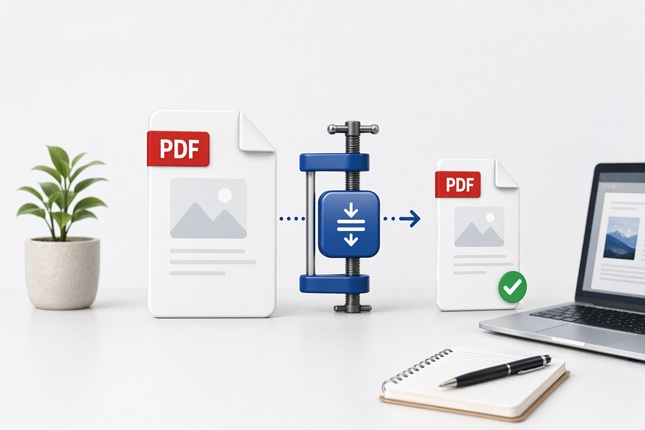
PDF files are easy to create but quickly become difficult to manage once they grow in size. Large files slow down uploads, fail to send via email, and create unnecessary friction when you’re trying to share something quickly.
The solution is straightforward. You do not need advanced tools or complicated workflows. By following a few simple steps, you can reduce file size while keeping your document clear, readable, and professional.
Step-by-Step PDF Compression Process
When you compress pdf files, the key is to control what gets reduced and what stays intact. Instead of relying on automatic settings, use a simple, structured approach.
1. Choose a reliable tool
Start with a tool that allows you to adjust compression levels. Some tools apply aggressive compression by default, which can reduce image quality or distort formatting. A reliable option gives you control and lets you preview the result before saving.
2. Select low or medium compression
Avoid jumping straight to the highest compression level. In most cases:
- Low compression keeps the file almost identical to the original
- Medium compression reduces size further while keeping text and visuals clear
In practice, this level of compression works well for emails, uploads, and document sharing.
3. Optimize images before exporting
Images are usually the main reason PDFs become large. Instead of relying on compression to fix this, optimize them beforehand:
- Resize images so they match how they appear in the document
- Avoid using high-resolution images when not needed
- Use efficient formats to reduce weight
Teams often use this approach to group multiple files or reduce overall size.
4. Remove unnecessary elements
Many PDFs contain extra data that is not visible but still adds weight. Clean up your file by:
- Deleting unused pages
- Removing duplicate visuals or elements
- Simplifying heavy design components
A lighter file compresses more effectively and stays more stable.
5. Export a fresh optimized version
Instead of compressing the same file multiple times, go back to the original version and export a new optimized PDF. Repeated compression can gradually reduce quality, even if it’s not immediately noticeable.
6. Review the final file
Before sending or uploading, always check the file:
- Make sure text is sharp and readable
- Check that images are clear
- Confirm the layout has not shifted
If everything looks consistent, your file is ready to share.
What Affects PDF File Size
Before you rely on compression alone, it helps to understand what actually makes a PDF large. Most PDFs become heavy because of a few key factors:
- Images: High-resolution visuals are often the biggest contributor, especially when they’re not resized before export
- Fonts: Embedding multiple font styles adds extra data
- Design complexity: Files created in design tools often include layers, effects, and hidden elements
- Metadata: PDFs store additional information that is not visible but still takes up space
For example, a simple document with text may be under 1 MB, while a presentation with images and design elements can easily exceed 10 MB. The difference comes down to how the file is prepared.
When you understand these factors, you can reduce file size at the source instead of relying only on compression.
Best Practices to Maintain Quality
Since PDFs are used by 72% of enterprises for secure document handling, quality and readability matter. To keep your files professional while reducing size, focus on consistency and preparation:
- Keep text in vector format so it remains sharp at any size
- Use high resolution only where it’s necessary
- Avoid exporting the same document multiple times
- Keep an original version saved separately
- Test your file on different devices to ensure readability
These habits help you maintain both visual quality and efficiency. Over time, they also reduce the need for heavy compression.
Common Mistakes to Avoid
Some mistakes can reduce quality even if the file size looks right:
- Using maximum compression without reviewing the output
- Compressing a file that has already been optimized
- Ignoring image size before creating the PDF
- Skipping the final review step
- Relying only on compression instead of preparing the file properly
These issues often lead to blurry visuals, distorted layouts, or unreadable text. A simple review process helps you avoid sending low-quality files.
Working With Compressed Files in Practice
In many cases, you’re not only creating PDFs but also receiving them. Files often come from clients, teammates, or partners in different formats.
Documents are frequently shared in ZIP folders to group multiple files together. In these situations, knowing how to unzip a file allows you to access the contents quickly and work with them properly.
Once extracted, you can review each file, identify which documents need compression, and avoid unnecessary edits. As a result, your workflow stays organized and easier to manage when handling multiple files.
When You Should Not Compress a PDF
Compression is useful, but there are cases where it should be avoided:
- Legal documents that require exact formatting
- Files prepared for print where resolution is critical
- Design-heavy presentations where visual detail matters
In these situations, reducing file size can affect the final result. So it’s better to keep the original quality and use alternative ways to share the file, such as cloud links.
Key Takeaways
- Large PDFs create friction in sharing, uploading, and communication
- A simple step-by-step process helps reduce file size without losing quality
- Image optimization has the biggest impact on file size
- Avoid compressing files multiple times or using maximum settings blindly
- Always review the final file before sending
Once you follow this approach consistently, your documents stay lightweight, easy to share, and visually professional across different platforms.